
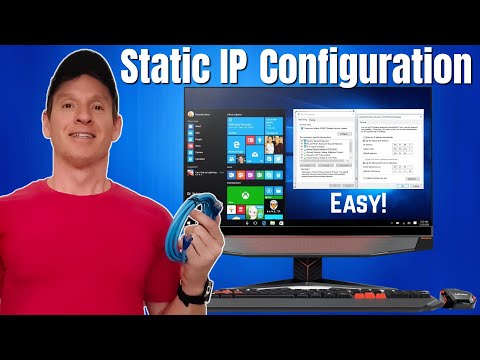
Learn how to configure a static IP address on your Windows computer and PlayStation 5 for better network stability, gaming performance, and easier port forwarding.
Before setting a static IP, check your router’s DHCP settings:
192.168.1.1).Follow these steps to set a static IP for a PS5:
Setting a static IP address ensures a stable and optimized network experience, especially for gaming. Whether you're on Windows or PlayStation 5, following these steps will help eliminate IP conflicts and improve performance.
what's up guys welcome back to the channel i'm mike this is the ultimate tech hub thank you for joining me you guys are awesome so guys on today's video we're going to show you how to configure static ip addresses on a windows computer and a gaming console and in addition we're going to show you how to pick the perfect ip address for your situation so let's get started so first we're going to do static ip configuration in windows and then we're going to do static ip configuration on a gaming console and we'll do that on a playstation 5. so first thing you want to do is go to router settings then go to local network tab and here you'll find the dhcp server you want to take note of the start ip address the maximum number of users the subnet mask and the ip address range and also take note of dns 1 and dns 2. you can see that we use cloudflare for our dns server and there'll be a video link right here you can watch later that fully explains this dns but this dns does block malware and adult sites pretty cool so all the information you see here will allow you to make valid static ip addresses on all your devices so now go to your desktop and then go to control panel and then go to network and internet now go to properties and from here you can see all of our network information the ip assignment which is automatic and the current ip address now hit the back arrow twice to network status then go to change adapter settings right click local area connection and go to properties then click on internet protocol version 4 ipv4 then go to properties and here is where we input the static ip address and now you want to click on use the following ip address so now here's where the ip range comes into effect when creating a static ip address you want to use the higher numbers and the ip range because the higher numbers will not be used when dhcp automatically assigns new ip addresses and remember our current lease time for these ip addresses is 1440 minutes so every 1440 minutes dhcp will assign new ip addresses and it will start handing out ip addresses beginning at the start ip range like 100 then 101 then 102 and so on so make your static ip address far away as possible from those ranges but the ip address has to be within ip range so we're going to use 192.168.1.200 and that's 100 ip addresses from the ip address start range and when dhcp hands out new addresses it should never get close to our static ip addresses and we can create over 40 static ip addresses in the 200 range so now use all the information that we gathered from our network settings in our router like the subnet mask default gateway and remember your default gateway is always the first ip address it's the same ip address that you use to access your router and also plug in the dns numbers and then hit ok you've now created your first static ip address and this can be done on all your computers laptops tablets phones and even gaming consoles now that you made it this far into the video let's create a static ip address on a playstation 5. so go to network settings in your ps5 click on a wired connection and go to options advanced settings then go to manual ip address settings and once again here you plug in all the numbers ip address subnet mask default gateway primary and secondary dns and this address was created using a different dhcp range for this ip address we chose 192.168.1.131 however if you use the previous dhcp range that we used in the windows computer this ip address can be 192.168.1.201 or 202 or 203 so it's simple plug all the numbers in and then hit ok you now have a playstation 5 with the static ip address and this static ip address is fantastic for port forwarding so guys if you found this video helpful please give a thumbs up and share it and make sure to hit subscribe to keep this channel alive and i'll see you in the next video real soon peace
A hot cup of coffee is a Fantastic Way to Help Support our Channel!☕https://www.buymeacoffee.com/ultimatetechhub Or You Can ...

Welcome back to The Ultimate Tech Hub. On today\'s episode we will show you how to make a Cat6 Crossover Cable. We will ...

These are 3 Secret Router Settings to speed up your Internet. When your Internet speeds are not as fast as they should be, you ...

What Router Settings Should You Change? These are the Top Wireless Router Settings in 2022. If you have any questions about ...

On this episode of The Ultimate Tech Hub, we will show Home Networking Fundamentals and Home Networking Basics. We will ...

In this episode I will organize my Home Residential Network Box which has become a mess over the last 10 years. Excess coaxial ...