
Expanding your home network with multiple routers can improve Wi-Fi coverage and provide additional LAN ports for wired connections. This guide walks you through setting up three routers from different brands on the same network, ensuring seamless connectivity.
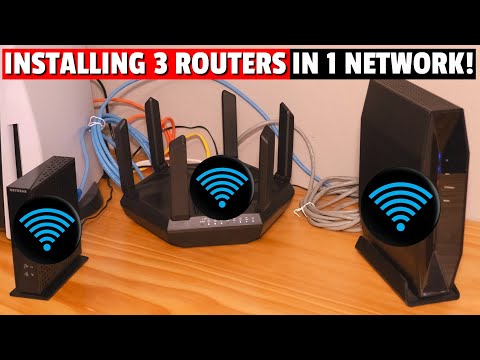
In this setup, we will install and configure three routers:
First, access the main router’s admin page and retrieve the network IP address. In our case, the main router’s IP is 192.168.1.1.
192.168.1.8.
Router 2 will be assigned the IP 192.168.1.2. Follow these steps:
192.168.1.2.
Router 3 will be assigned the IP 192.168.1.3. If using a mobile device to configure it:
192.168.1.3.Once all routers are configured, connect them to the main network:
| Router | IP Address | DHCP | 2.4GHz Channel | 5GHz Channel |
|---|---|---|---|---|
| Main Router | 192.168.1.1 | Enabled | Channel 1 | Channel 36 |
| Router 2 | 192.168.1.2 | Disabled | Channel 6 | Channel 44 |
| Router 3 | 192.168.1.3 | Disabled | Channel 11 | Auto |
Setting up multiple routers in one network is a great way to expand coverage and improve connectivity. By carefully configuring static IP addresses, disabling DHCP on secondary routers, and optimizing Wi-Fi channels, you can create a seamless, efficient home network. Whether you are using wired or wireless connections, following these steps will ensure that all devices remain connected without interference.
If you need to add more routers in the future, simply follow the same process with additional IP addresses (192.168.1.4, 192.168.1.5, etc.).
hey hey what's up Mike this is guys welcome back to the ultimate Tech Hub today we're gonna install three routers in one network I'm going to show you every step of the process and explain each step thoroughly and to show you how easy this process is we're going to install three different routers from three different brands so router number one or our main router is the Asus axe 7800 Wi-Fi 60 router Router number two is the Linksys ax 5400 and our third wireless router is an old Netgear router before we can install three routers into our Network we have to set up the main router or router number one so let's log into router number one and get the network IP address our Network IP address is 192.168.1.1 and the first thing you want to do is head over to DHCP and take a look at the IP addresses we're going to configure two static IP addresses one for router two and one for router 3. so in order to do this we need to make sure there's no IP address conflicts so in DHCP we're going to change those range of addresses we're going to start at 8 this will free us up some IP addresses or static IPS by starting at 8 we can now configure up to seven static IP addresses so router number two will be 192.168.1.2 and router number three will be 192.168.1.3 and yes we can add a fourth or fifth or sixth router this process is all the same oh guys don't forget hit subscribe that's what the cool kids are doing ah so once we change this DHCP hit save now go to wireless settings and take note of the SSID security settings and password under the 2.4 gigahertz band on router 1 we're going to change the control channel to channel one because this channel does not overlap with the other channels under the 5 gigahertz band select channel 36 under the six gigahertz band we'll leave it alone then hit apply and now we can configure router number two and router number three and to make this simple all we have to do with router number two and three is turn off DHCP and plug in the network IP address for each router and lastly we'll configure the wireless settings the access router 2 and 3 simply plug the router into your PC via the Lan port on the router once you log into the admin screen you want to look for the local network Tab and we're going to make two changes here we're going to change the router IP address to 192.168.1.2 and also disable DHCP and hit save we'll also have to configure our wireless settings our SSID security and passwords the SSID should be different but the security and passwords can be the same so router 2's SSID is uch 2.0 for the 5 gigahertz band we set the channel to 44. for the 2.4 gigahertz band we chose Channel 6 because once again it's a non-overlapping channel and for the password we're going to use the same password as our main router super bad change your name and now we're all done with router 2 and on to router three we're going to access router 3 with our phone to make all the configurations once again we need to change the router IP address to 192.168.1.3 and once again disable DHCP then we're going to go to the wireless settings and our SSID will be uth 3.0 same security settings the 2.4 gigahertz band will be Channel 11 because once again it's a non-overlapping channel and we're going to use the same password super bad save all the changes now it's time to plug in the routers to the main router there's a couple ways you can do this you can plug both routers into the Lan ports on the main router or plug in one router to the main router and the third router into the second router kind of like piggybacking and if your house has a network panel like mine with ethernet going to several different rooms you can plug router 2 or 3. into any available port and this will provide additional Wi-Fi as well as additional Lan ports so guys that's how you set up three routers in one network or four or five or six or whatever it's super simple use the techniques that I've shown you and it's super easy so guys make sure to like share comment and for God's sakes hit the Bell icon and I'll see you next video real soon peace foreign

On this episode of Ultimate Tech Hub we will make 2 custom length Cat6 Patch cables for our network box. We will take you ...

Welcome back to The Ultimate Tech Hub. On today\'s episode we show you how to install RGB Smart Lights to a Residential ...

This is How To Build A Home Network with pfSense and as a Bonus we will install a VPN on the router! Private Internet Access ...

Do you want Faster Wi-Fi Speeds? This video shows you 1 simple setting to get faster Wi-Fi speeds! This works for all Wireless ...

Which Wireless Solution is right for your Home Networking needs. Should you setup a wireless router? Should you setup a Mesh ...

Welcome back to The Ultimate Tech Hub. On today\'s episode we will connect a Cat6 ethernet cable to a Cat6 Wall Jack and we ...