
The RTX 3080 Ultra is a powerful gaming GPU offering high frame rates and excellent 4K performance. In this guide, we’ll walk you through installation, driver updates, and gaming performance benchmarks.

We chose the RTX 3080 Ultra for its affordable price, high 4K gaming performance, and sleek design. This model features:
Follow these steps to install your RTX 3080 Ultra:
Once installed, you’ll need to update the GPU drivers:
We tested the RTX 3080 Ultra with two popular games:
| Game | Resolution | FPS |
|---|---|---|
| Fallout 4 | 4K Ultra | 60 FPS |
| Counter-Strike | 1080p Ultra | 295-330 FPS |
The RTX 3080 Ultra is an excellent choice for gamers looking for a high-performance GPU at a reasonable price. It delivers smooth 4K gaming, stays cool under load, and offers incredible FPS for competitive gaming.
Pros:
Cons:
If you're planning to build a high-performance gaming PC, the RTX 3080 Ultra is a great option.
Today, we’re installing the RTX 3080 Ultra graphics card and updating its drivers. This GPU offers amazing gaming performance, making it a great choice for PC gamers.
We chose the RTX 3080 Ultra because of its affordability, high FPS, and 4K capabilities. It features:
To install:
After updating the drivers, we tested its performance. Fallout 4 ran at 60 FPS in 4K, and Counter-Strike achieved over 300 FPS at 1080p. The results were impressive.
If you're looking for a solid gaming GPU, the RTX 3080 Ultra is a fantastic choice.

Today we are looking at the new WiFi 7 802.11be standard. It\'s bigger, faster, stronger and the future of wireless computing!
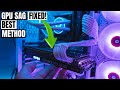
Welcome back to The Ultimate Tech Hub. On today\'s episode we will show you a clever way to fix your GPU sagging problem.

Welcome back to The Ultimate Tech Hub. On today\'s episode we will go through the process of updating both the Geforce Studio ...

These are my TOP 5 Wireless Routers for 2025 and 2026! Best Prices On Our Top 5 Wireless Routers in 2025! ASUS ROG ...

Welcome back to The Ultimate Tech Hub. On today\'s episode we breakdown some secret features of the PlayStation DualSense ...

Welcome back to The Ultimate Tech Hub. On today\'s episode we are installing a new 2TB SAMSUNG 870 QVO SSD. And we are ...