
The EnGenius ECW336 Wi-Fi 6E Access Point brings cutting-edge wireless technology to your home network. In this guide, we’ll walk through a complete installation process, including running Cat6a cabling, mounting the AP, and managing it through the EnGenius Cloud app.

This installation places the ECW336 at the end of a living room near sliding doors to maximize Wi-Fi 6E coverage for both indoor and outdoor areas, including a backyard pool.
The EnGenius ECW336 delivers excellent speeds on the 2.4 GHz and 5 GHz bands, with even better potential on the 6 GHz band when using Wi-Fi 6E-compatible devices. During testing, it outperformed the existing Wi-Fi 6 AP in both speed and range.
The EnGenius Cloud platform (available via app and desktop) makes it easy to monitor devices, update firmware, and manage SSIDs and security settings from anywhere.
Upgrading to Wi-Fi 6E is an excellent way to future-proof your home network. The EnGenius ECW336 stands out with its reliable performance, easy installation, and intuitive management features. Whether for home or small business, this access point is a solid investment.
today is an awesome day because we're installing Wi-Fi 6E in our home network and it's about time hey hey guys what's up I'm Mike and welcome back or welcome to the ultimate Tech Hub we currently have a Wi-Fi 6 access point in our home network and it works well the Wi-Fi 6E is much faster because of the six gigahertz band the six gigahertz band is what provides the extremely fast speeds that we all want and need who doesn't want faster Wi-Fi speeds I do this is the ingenious ECW 336 Wi-Fi 6E access point this access point operates on the 2.4 5 and 6 gigahertz bands the ECW 336 is powered by power over ethernet this AP includes a 5 gig Lan port a DC 12 volt connection if you're not going to use power over ethernet and a reset button and this access point is very thin it looks nice stylish lightweight durable and on the back of the AP it connects right here to the bracket for the ceiling mount okay hear the supplies and tools you're going to need to install the access point first we're going to need measuring tape drill hammer pencil drill bits you're going to need a stud finder and if you're going to make your own patch cables long cables you'll need some cable we're going to use cat6a also the connectors the boots crimping tool wire stripper and don't forget if you're going to go in the Attic make sure you've got adequate mask also gloves as well and of course you'll need a ladder to access the attic and the ceiling where you're going to install the access point okay first thing you want to do is determine the center of your home that's where the access point should be located and right here you can see is our w8630 access point now this is a Wi-Fi 6 access point and we get great coverage throughout the house so my plan is to leave that access point where it's at we're going to install the Wi-Fi 6E access point at the end of the room by the slider and at that location it will provide covers throughout the house as well as the backyard by the pool I could take down this access point and just Mount the new one here but I'd like to have two access points and we all know more access points is more better so let me show you location of our new access point our location for the new access point will be about right here and I'll drill a hole through the ceiling into the attic we'll run our cas6a wiring through the attic all the way to the network panel in our closet and then we'll attach the mounting kit with the provided Hardware now that we have our location we need to cut some wire that goes from that access point to the network panel in our master bedroom closet so we're going to use our measuring tape we'll simply measure from the access point all the way through to the closet and before we go into the attic we're going to terminate both ends of that wire because it's more difficult to terminate that wire on that ladder so let's go ahead and measure from the access point to the network panel come on let's go we're gonna start from here 12 feet and from here we have 17 feet got about six feet in here we got six more feet and right here we have 22 feet three feet maybe another three feet we need to measure from up here the top say six feet now doing all the math getting the wire to the access point to the switch is 75 feet of cable and we're gonna plug that cable right into our eight Port Poe switch from ingenious and this will power our access point with Poe all right we're gonna roll out 80 feet of this cat6a cable this cat 6A ethernet cable was provided by JDM automations out of Las Vegas if you're looking for a company to install low voltage wiring give Mike a call at JDM automations and make sure to mention ultimate Tech Hub to get that discount and we got about 85 feet probably I went a little longer than necessary but just in case so now we're going to terminate both ends of the cable at the end of this video I'll provide links on how to terminate cat 6A Cat6 Riser cable and Cat5e and to make this process even easier you can buy ethernet cables at various links that do not need to be terminated which saves you some time let's go ahead and mark the location of our access point ceiling mount bracket now I've already checked this area prior to coming up here right here seems okay you can tap here that's definitely wood that's Hollow so right here we should be good I'm going to install the bracket here and drill the hole for the ethernet cable right around here as well let me show you how this works like this okay and it hooks on then you pull this up tab up and it comes out like that so we want to put like right here and then we're going to drill the hole about right here so it comes out here I want the cable not to be so noticed if possible so I'll be facing this way anyways so be like this first thing we're going to do trusty pencil and we'll go ahead and Mark right there and at this point we're going to test out that bracket to make sure it holds and it does next we'll drill the hole for the cat6a cable to go up into the attic we'll start with a small drill bit and then go up to a larger drill bit and now we'll see if the cable fits inside the hole and it does so now we're going to push all the cable up into the attic and then go in the attic and I'll find the cable and I'll drop it into the network panel this is a lot of cable so I'll fast forward this now we're going to slide this onto the bracket like so and then we can just run this cable up and out of the way perfect you can't see it at all right let's go to the attic like I always say be careful when working in the Attic all right this is the attic and back here is where the wire is all right here we are let's go check it out shall we remember you need to walk on these cross beams otherwise you're going to fall through the ceiling and that would hurt and voila there is all of our wire kick away the insulation to reveal the cross beams and then we'll grab that wire so to get the wire and we need to pull most of this all the way this way so when I pull it to the network panel it won't caught on anything good there we go we're good now at this point we're gonna work our way back towards the middle of the attic once again walking on these cross beams carefully and we've now pulled our cable to the center of the attic all right we're going to use the old bolt on a string to run the wire down the hole into the network panel we'll attach this end to the Cat6 cable we'll drop this down to the network panel because of the weight of this bolt it will go straight down to the network panel guaranteed easy and then when we go downstairs I'll pull this through and it'll bring the other end down they'll bring that k6a cable down through there and then I'll plug it into the switch and then we're done I'm going to go ahead and start pulling it back that way to the network panel hole just a heads up make sure to be careful when working in your attic there are wires everywhere and boards with nail sticking out so here we're going to drop that bolt on a string through that hole that leads to the network panel below and then wait for the sound of that bolt hitting the bottom you can hear it down there and I think we're already there now I'm gonna do is attach this to the end of our cable we'll stuff this down there in the hole a little bit just to get it started stuff it down like that I think we're good right there good to go let's go downstairs and pull it through and the old bolt on a string always works now we'll plug it in to our ingenious 8 port Poe switch right here I got a spot for it right there first things I want to do though I'm going to clean this up a little bit I'll plug it in and then we'll get looking pretty and test our new access point make sure everything works correctly and here's the finished Network panel all cleaned up and this is the cat6a wire that connects to the ingenious 8 Port switch connects right here so now it's time to set up the access point first you need to download the ingenious app sign up with your email and a password and then you'll want to add device you can do this by scanning the QR code or by typing in the serial number and then you'll go through a simple setup process and congratulations you're all done and just a heads up before your access point will work it needs to be updated and this takes about three or four minutes and I found you have to unplug and plug back in the access point after the update you can manage your access point from your phone or your desktop computer I find it's much easier to use the desktop version and from here you control everything you set up the SSID names pass words security types you can manage devices that are connected to the access point and you can see which devices are connected to each band and now we're going to check the speeds of this wi-fi 6E access point unfortunately this laptop is not Wi-Fi 6E compatible however these speeds are really fast the ingenious 336 performs just as well or slightly better than our current Wi-Fi 6 access point and once we get some Wi-Fi 6E compatible devices we will see an increase in speed guaranteed and the main reason I installed this access point in this location is that we're definitely going to get a Wi-Fi 6E compatible TV as well as cell phones and laptops in this location of the access point will be perfect for those devices it's within the 50-foot range and there's no walls or obstructions so if you're looking for a Wi-Fi 6E access point that's not too big has a very intuitive app and can be used for home or business then the ecw336 is a great choice and there'll be a link in the description below for this access point well guys as usual thank you so much for watching remember like share subscribe comment and for God's sakes hit the Bell icon and I'll see you in the next video real soon peace

Welcome back to The Ultimate Tech Hub. On today\'s episode we will give you 8 Expert Tips for setting up a safe, secure & strong ...

A hot cup of coffee is a Fantastic Way to Help Support our Channel!☕https://www.buymeacoffee.com/ultimatetechhub Or You Can ...
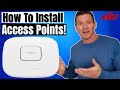
On today\'s episode we show you how to install any Wireless Access Point (WAP). Installing a Ceiling-mount Wi-Fi Access Point is ...

A hot cup of coffee is a Fantastic Way to Help Support our Channel!☕https://www.buymeacoffee.com/ultimatetechhub Or You Can ...

Today we are looking at the new WiFi 7 802.11be standard. It\'s bigger, faster, stronger and the future of wireless computing!

On this episode of The Ultimate Tech Hub, we will show you where the coax cable goes in your house. Many viewers and ...