
Welcome to the ultimate Home Networking Build Guide 2024. This guide covers everything you need to set up, secure, and optimize your home network—whether you live in a small apartment or a multi-story house. We’ll break down hardware requirements, wired vs wireless setups, network security, and more.

Start by assessing your home's size, layout, and the number of devices that need to connect. Consider factors like:
When setting up a home network, you'll need the following hardware:
| Wired Networks | Wireless Networks |
|---|---|
| Faster speeds and stable connections | More flexible for device mobility |
| Secure and less prone to interference | Quick setup without running cables |
| Ideal for gaming, streaming, and desktops | Perfect for phones, tablets, and IoT devices |
For larger homes or tricky layouts, extend your network using:
Network security is critical. Here’s how to keep your home network safe:
To maximize speed and reliability:
Whether you’re troubleshooting connectivity issues or planning a new setup, this guide has you covered.
hey hey what's up Mike this is guys welcome back to the channel today's episode is the home networking Build guide 2024 this video will show you how to set a home network regardless of the size or type of home you live in and we're going to cover all aspects of the home networking build process from how to choose your networking Hardware how to extend your wired and wireless network range how to optimize and secure your home network and much more this video is a culmination of 5 years of setting up home networks on my YouTube channel and we're going to cover many different topics but good news this video is broken down to seven different sections so you can find the topic or topics you want to watch or rewatch again and guys if you don't know this my name is Mike I love technology I love networking I love computer builds I love TVs gaming consoles all things technology if you enjoy these things as well make sure to hit subscribe and the bell notifications and while you're there give a thumbs up and share this video all right section one evaluating your home networking environment and your home networking Hardware your home environment will determ determine your Hardware needs the larger the home environment typically means the more Hardware you're going to need consider square footage and don't forget to include your basement and how many stories you have more rooms means more wire connections and or extending your wireless coverage area also where does your ISP come into the house some homes have a dedicated Network enclosure and some do not the last two homes that I lived in both had Network enclosures one small and one large if your ISP runs on a coax like Cox Cable then you can set up your home network in any room that has a coax Outlet make sure to build your home network in an area that's free of clutter and has room for multiple devices as well as many power outlets stay away from kitchens because the microwaves can interfere with a 2.4 GHz band also consider adding a backup power supply to keep your network up and running when there's a power outage and for larger homes and especially twostory homes you'll most likely need two access points to cover all areas so let's talk about isps for a minute internet service providers an ISP can set up your home network in multi multiple ways depending on what your ISP offers and how complex your needs might be however you'll most likely need to buy additional equipment to extend access to more devices some isps will provide a single CP device to cover all these networking functions this type of device is an all-in-one it's a modem and a wireless router combo with additional lamp ports for more wired devices a word of warning about these all-in-one devices these devices are typically Limited in features and capabilities and I don't recommend them other providers however may only provide a single access device like a modem or a fiber on and these devices have no additional networking capabilities requiring users to build out their networks and that's why you're watching this video additionally these isps May charge you for these devices or rent them to you for a monthly fee I would just purchase the devices to save money in the long run but if you like it simple and easy then go with the ISP devices and that brings us to home networking Hardware when setting up a home network consider the four following Hardware components first first is access devices typically a cable modem fiber o and or DSL modem and yes there still is DSL somewhere the second device is a router to direct traffic in and out of your network this device could be a VPN router a wireless router or a gaming router for smaller single story homes apartments or Condominiums a decent wireless router is all you need because it will serve both wired and wireless devices it makes sure to match your home square footage with the correct wireless router typically the square footage number is on the B and don't get too much coverage because you don't want your signal broadcasting to all your neighbors all right the third device is a switch switches connect additional wired clients to the lamp ports on the router switches are available in both managed and unmanaged varieties an unmanaged switch is typically less expensive and usually offers minimal features and to be honest they're basically a plug-and playay these are typically sold in five eight Port versions and cost between $2 and $3 per Port not bad now a managed switch is more expensive because they have have more features and capabilities for instance these types of switches have vlans and have the ability to segment or block traffic to wire clients and some manage switches will provide Poe ports power over ethernet this delivers power to devices like APS and Poe cameras Poe can power these devices so an additional electrical Port is not required this is especially helpful for Poe cameras so choose an unmanaged switch for a quick and easy setup TP link and Netgear have great models and choose a manage switch if you want full control of the traffic on your switch once again TP link and Netgear have great models our fourth and last device is an access point an access point connects Wireless clients like cell phones laptops and TVs and Poe powered access points are much easier to install because it only requires one wire to power it and send and receive data making the installation very easy and you can install several APS depending on the size of your home typically a two story home with had two APS one on the first floor and then one on the second floor however if you have a wireless router on the first first floor and install an AP on the second floor for optimal coverage all right guys section two weighing wired devices versus wireless devices generally speaking wired devices provide better performance stability and quality of service than wireless devices but that upside comes with a potential higher cost difficult of running ethernet cables through the walls and ceilings and usually less flexibility however wireless devices can be moved around anywhere but can provide lower and spottier performance especially when trying to access larger files or participate in a video conference call or online gaming it's really a performance versus convenience decision and most homes are a hybrid of both wired and wireless it just makes sense typical wired devices include desktop computers TVs and streaming boxes like a Roku or Apple TV these wired devices have an RJ45 connector that enables a connection to an ethernet cable like cat 5e or cat 6 some devices include both wired and wireless connections like a desktop computer or a TV but whenever possible always use a WI connection over Wireless you'll have a faster more secure and stable connection it's just the facts typical wireless devices are laptops tablets cell phones TVs gaming consoles and iot devices like thermostats lights some security cameras and even garage door openers in FYI almost all these iot devices run on the 2.4 GHz band typically iot devices do not work on the 5 GHz band all right guys section three connecting wired clients connecting a wired client is pretty straightforward use an RJ 45 network cable connect one end to the device and connect the other end to a switch or land port on the router and that's it just about every router supports gigabit Ethernet which is 1,000 megabits per second and if all your devices support gigabit Ethernet which they should you could achieve 1,000 megabits per second and these speeds can be achieved with a cat 5e cable or cat 6 with no problem so don't bother with a cat 8 it's Overkill and FYI cat 5e performs well in shorter runs however cat 6 performs better in longer runs up to 328 ft all right guys section four connecting wireless clients first of all you're going to need wireless capability from your wireless router or access point or both in order to connect to wireless clients like a cell phone and make sure to set up a solid password for your SSID don't use password for password otherwise this could potentially compromise your network and Wi-Fi has different Generations Wi-Fi 5 Wi-Fi 6 Wi-Fi 6C and even Wi-Fi 7 so if you have a Wi-Fi 6C wireless router some of your devices May support this version for instance this Samsung s23 is Wi-Fi 6C ready which means it has the ability to connect to the 6 GHz band and speaking of bands wireless devices will work on three different bands the 2.4 the 5 and the 6 GHz band and the 5 GHz band shouldn't be confused with 5G because 5G is a cell phone standard not a wireless standard the 2.4 GHz band is the lower band and is the most popular band because this band can travel further and through walls which which makes it great for all your wireless devices and including your iot devices the 5 GHz band has higher bandwidth and more throughput but the trade-off is the 5 GHz band doesn't travel as far and lastly the 6 GHz band is the newest band and it's even faster than the five but once again it has a shorter range and has a hard time going through walls and ceilings all right guys section five which is my favorite extending your home network range in many situations your modem and router is in the main living area or the living room and perhaps far away from your home office or other bedrooms when extending your network range the first step is to make sure your modem and router are optimized for best performance and your ISP should ensure that your modem is optimized an online speed test can help verify the performance between the router and the modem The Next Step will be reaching those far away spots in your home with APS in this case a wired ethernet connection is your best bet additionally ethernet can be extended via Powerline adapter which uses your home electrical wiring the third choice to extend your Wi-Fi cover coverage is a mesh wi-fi system and this mesh wi-fi system is wireless and does not use ethernet cables and a great example of a mesh wi-fi system is net gear Orbee they're fantastic and reliable these Network extension capabilities have their pros and cons but ethernet cabling is always the best bet but the single greatest benefit of using an ethernet cable to extend your home network is the cable does not need to be connected to just one client it can be attached to a switch by extending your network out beyond the router with an ethernet cable and then adding a switch other multiple wi clients can be added in a different location in the home and from a Poe switch Poe wireless access points can be added easily which brings Wi-Fi to the remote parts of your home via Ethernet cable all right guys section six protecting your home network whether you're using your isp's router capabilities or buying your own wireless router securing your network is of vital importance when setting up your home network this means setting up passwords on devices and changing default passwords on any device accessing or controlling the network also make sure the firewall is active on your router a firewall is designed to only allow certain traffic through and then block the rest within any router virtual ports are used for different applications for example web traffic uses Port 80 secure web traffic uses Port 443 and games and streaming devices have their own set of port numbers ensuring that you only open the minimum number of firewall ports will help keep you safer in the long run and check to make sure the remote access to the cable modem and router is disabled and lastly strong wpa3 or WPA2 passwords is a must for a strong and secure home network all right guys last section section seven optimizing your home network a final consideration for building a home network is optimizing the performance and performance is measured in several different ways including the following bandwidth which is measured in megabits per second latency which is how long it takes a packet to arrive and is measured milliseconds and lastly Jitter which is the amount of variance in the latency and is measured in milliseconds as well most network speed tests will provide you this information so as you make changes to your network you can test to see if those changes are making a difference or not much of the optimization will happen on the Wi-Fi side because Wi-Fi has more variables to assign for example the physical layout of your home can affect your performance and even obstacles like walls glass and even microwave ovens can add interference knowing which wi-fi channels your neighbors are on can also help optimize your performance for the 2.4 GHz band a best practice is using Channel 1 6 or 11 because they're nonoverlapping channels once you have your network infrastructure optimized it's time to optimize applications the process can start by sending qos quality of service which is typically done in the router qos enables certain packets to have higher priority based on their packet type in this step you can assign a higher priority for video or void traffic so that a game or a large download file does not affect the video conference quality every router has a different method for qos so consult your manual so guys remember I answer all questions so feel free to ask in the comments below and with that being said make sure to like share subscribe and comment and for God's sakes slap the Bell icon and I'll see you in the next video real soon peace

Hi everyone and welcome to another episode of the Ultimate Tech Hub. Today we are going to answer an important question.

The TP-Link Archer Ge800 is a Tri-Band BE19000 Wi-Fi 7 Gaming Router. In this video we will speed test the Archer GE800 both ...

These are My Top 4 Ethernet Cables for gaming on your PlayStation 5, Xbox, Nintendo Switch and PC! Please Like, Share ...

Welcome back to The Ultimate Tech Hub. On today\'s episode I\'m going to show you the best locations for your network devices.

Welcome back to Home Networking For Beginners!! On today\'s episode we will show you "How To Install Low Voltage Wires" in ...
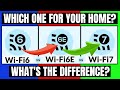
If you are a Home Networking Enthusiast who wants to learn the differences between Wi-Fi 6, Wi-Fi 6E, and Wi-Fi 7 then you are ...