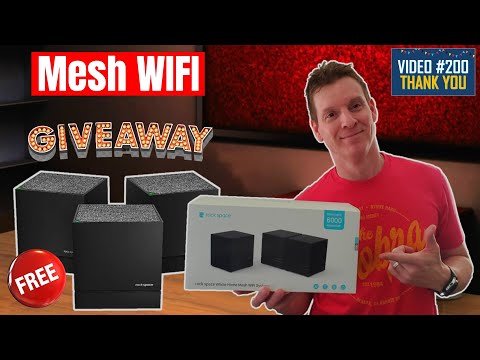
what's up guys
i'm mike and welcome back to the
ultimate tech hub
on today's video our 200th video we're
going to take a look at a mesh wi-fi
system from rockspace
and in celebration of our 200th video
we're going to give away one of these
systems
to a lucky viewer like you so make sure
to watch to the end of the video to get
all the details on how to enter this
drawing
and good luck
[Music]
all right guys before we install and
review this mesh wi-fi system for
rockspace
we need to answer two important
questions first
what is a mesh wi-fi system and second
how does it work a typical mesh wi-fi
system
consists of multiple hardware wi-fi
broadcasters for example
routers or access points and this
hardware
works together to form a single unified
wi-fi network
and you'll need at least two hardware
units to form a mesh network
one hardware unit connects to the
internet and the other units
linked to the first one via wirelessly
or a network cable
to extend the wi-fi coverage and these
hardware units have different names
depending on different vendors like
access points
nodes base stations satellites or mesh
points
and rockspace calls these hardware units
nodes
so in this video we will refer to the
hardware units as nodes
and the hardware unit that connects to
the internet will be called the primary
node
and the other nodes that connect to the
primary node
will be called the secondary nodes now
that you know what a mesh wi-fi system
is and how it works
let's go ahead and install this mesh
wi-fi system for rockspace
for this installation there's two ways
to do this
rockspace recommends plugging the
primary node into the modem
via the lan port on the primary node and
any three of these nodes can be the
primary node
let's take a look at one of the nodes
and all three nodes are exactly the same
first off i like the black in this
simple black design
helps them blend in well when on shelves
and in different rooms
and rockspace recommends placing each
node as high as possible for the best
wi-fi coverage
and each node includes three ports a
power port
and two gigabit ethernet ports so now go
to the play store or itunes
and download the rs wi-fi app next
you'll need to create
a profile your email and password
next you'll need to go to the area where
your modem and router is located this
will be the location for your primary
node
now let's go ahead and connect the
primary node when you connect the
primary node to the internet
use the provided ethernet cable and plug
it into the lan
slash lan port on the primary node and
then
plug the other end of the ethernet cable
into the modem
and then plug in the power supply now
remember i did say there's two ways you
can install this wi-fi system
obviously the first way is via the modem
however there's a different way to
install this system
in many cases you may already have a
wi-fi router in your house
and if that's the case you'll want to
plug the primary node
into the lan port on your router at this
point the setup
process is exactly the same after you
plug in the power to the primary node
the led indicator will flash green
quickly
now wait about 40 seconds and that green
light will blink slower
next use your mobile device and go to
wi-fi connections
and look for an ssid that says rockspace
then you want to connect to it and you
can locate that password on the bottom
of the node
and once the primary node is connected
to the internet
the led indicator will be a solid green
once you run the rs wi-fi app go to
setup
and then follow the on-screen
instructions you're going to want to
change your ssid
name to whatever you want and then
definitely change the password
and now you're all done with the primary
node it's time to place
the secondary nodes the secondary nodes
can be placed in different rooms
but not too far away and with few walls
in between
for example in my house i placed a
secondary node outside on my patio
this secondary node will provide
coverage
for my patio my pool deck and even my
pool
and we have a tv outside on our patio
and we connected that tv
to the secondary node and with these
nodes you have two options
connecting wirelessly or wired
using the extra gigabit ethernet
connection now once all the secondary
nodes are placed in rooms and plugged in
with the power supply
you want to make sure the indicator
lights are all green
if they're all green you're good to go
if any of the lights are yellow
that means the connection is a fair
connection it's not a strong connection
if any of the lights are red then there
is no connection
from your rs wi-fi app you can see each
node
in the mesh wi-fi system you'll see if
they're connected and how many devices
are connected
you can also rename your nodes and just
a heads up
the directions recommend placing the
nodes no further than 32 feet apart
and with no more than two walls in
between them for example
in my situation i kept the nose 25 feet
apart
maximum and after testing this product
for about five days
i've had no connection issues especially
in my backyard
and the tv on our patio works perfectly
no buffering issues
and the best part about this system is
it's reliable and consistent
for me the setup process was very easy
the rs wi-fi app is good
it's not great or fancy but it's simple
enough to use
and this app does everything you need to
do to monitor your mesh wi-fi system
and what's nice about this system is
designed for large homes
nearly 6 000 square feet and that's a
lot of coverage
and with the mesh wi-fi system your
devices will automatically connect
to the closest node and this system
supports up to 1200 megabits per second
and supports mu mimo technology
to ensure multiple devices get the same
speeds when connected at the same time
and this will help reduce network lag
and this system provides a combined dual
band including 2.4 and the 5 gigahertz
band
and the speeds are divided between the 2
bands the 2.4 gigahertz band
gets 300 megabits per second in the 5
gigahertz band
gets up to 867 megabits per second so
guys like i said before
we've been using this mesh wi-fi system
for about five days
and it's worked great and the only
issues you may run into
is trying to find a power outlet for
each node and choosing your locations
wisely
you want to keep them away from
electronics that may interfere with the
signal
and even multiple walls but that being
said
we highly recommend this mesh wi-fi
system for rockspace
so guys now on to the giveaway ultimate
tech hub and rockspace have teamed up
to give away one of these systems to a
lucky viewer to enter the drawing
for this free mesh wi-fi system simply
leave a comment in the section below
and it's one entry per person so you
can't comment 10 times to get 10 entries
if you don't need a mesh wi-fi system
when you leave a comment
just say you don't need it in that way i
won't put you in the drawing
this giveaway will go on for seven days
we'll then randomly pick a name
from the comments below i'll contact you
via email
to get your name and address for
shipping it's that simple
and also guys don't forget to visit my
patreon page where two dollars a month
helps keep this channel going
and for every new member we'll give a
personal shout out on the very next
video
so as usual guys i want to thank you for
watching and remember
if you like these videos give a thumbs
up and share it
if you love them hit subscribe to keep
this channel alive
thanks again for watching
you