what's up mikee this is guys welcome
back to the channel so in today's video
we're going to take a look at a new
router from a company called GLI net
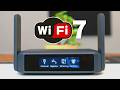
this is the marble ax3000 the ax3000 is
a small router that can be wall mounted
or you can place it behind the provided
picture frame and by doing so this keeps
your router out of sight and if you
watch our Channel and I know you do
you've already seen our video on the
opal travel router and later on in this
video we'll compare both of these
routers and if you if you haven't seen
the review on this router yet there'll
be a link at the end of this video so
make sure to watch it and there are some
benefits to having a small wireless
router the first benefit is obvious a
smaller wireless router has a smaller
footprint so it can be installed just
about anywhere and the second benefit is
smaller routers tend to be more simple
to use because there's less ports and
connections and sometimes less features
and the third benefit is that smaller
routers can actually be used as travel
routers which means that when you go on
a vacation you can take the router to
the airport cruise ship or hotel and all
you have to do is configure the router
to the hotel Wi-Fi or the cruise ship
Wi-Fi and you're good to go so on
today's video we're going to test the
Marvel ax3000 and all its features and
we're going to test the range and the
speed as well and then lastly we'll
compare it to the smaller opal router
the ax3000 includes open wrt
openvpn wire guard bark and add guard it
also includes parental controls and
three 1 gig ports and the ax x 3000 is
priced at
$89.99 so what exactly do you get with a
marble
ax3000 well you get some documentation
which includes the easy setup guide and
it also includes a picture frame and the
marble ax3000 can be installed behind it
so basically you can hide your wireless
router pretty cool and this picture
frame is made entirely of plastic and
this Frame does include a colorful
picture but you could personalize it
with your own unique picture and here's
the star of the show The Marble ax3000
and the ax3000 has plenty of ventilation
for cooling on the front of the A3000 we
have a DC power connection a w Port two
lamp ports and a reset button and
underneath the router is some mounting
hardware this also includes a flat style
ethernet cable another mounting bracket
and you also get a power cord which
includes the US Standard adapter and
lastly you get some mounting screws and
wall anchors so that's everything you
get with a marble ax3000 the one
intriguing thing about this router is it
size and shape it's basically perfect
for travel so it's a home router that
could be a travel router very cool and
this also includes a unique photo frame
where you hide the router behind
it like so and that way you'll never see
your router because it's discreetly
hidden so if you're not a big fan of
looking at your routers and switches
then this is a perfect idea it's
functional but it's hidden so now we're
going to set up the A3000 and test it
and don't forget at the end of the video
we'll compare it to the opal travel
router and make sure to watch this
review as well there'll be a link at the
end of this video so first plug in the
power to the router then you want to
download the ginet app then install and
open it next allow the app to take
pictures and record audio and now you
can scan the QR code on the back of the
router now the app will take you through
the setup process and one of my favorite
features about this router is the easy
setup process this app will
automatically find your router so then
then you connect to the router's Wi-Fi
type in the default password and you're
good to go now connect to the Wi-Fi and
go ahead and tap the allow this time and
now you're connected without internet
but don't worry we're going to fix that
so we have two options here you can
connect your modem to the router's W
Port via Ethernet cable and then your
router will have internet and the second
option is to connect to the local Wi-Fi
and this option would be is if you were
using it as a travel router like say on
a cruise ship or maybe a hotel or
airport you would simply connect the
router to the local Wi-Fi and to do that
open a browser and we use Brave and type
in the IP address of the router and that
information is on the back of the router
along with the SSID and default password
now we'll set up the router you'll
choose your language and then you'll
type in a brand new admin password and
please do not use password for the
password next go to your phone's
wireless network settings and look for
the local Wi-Fi network that you want to
use for instance like a cruise ship
connect to the network with a password
and now the marble ax3000 has internet
so now let's take a look at the admin
screen and all the features so on the
main admin screen you'll have all the
networking information about the ax 3000
and this includes the wireless ssids
both the 2.4 and the 5 GHz band and if
you click onto one of these icons you
can modify the wireless network like
changing the SSI ID and or password and
above these icons you also have adg
guard
IPv6 VPN and
tour at the top left you have the
multi-wan icon which allows for multiple
network interfaces at the same time and
below that icon this shows your current
devices connected to the router and
going further down below you'll have
information about your ethernet ports
both the w and the landan now at the top
right these three bars contain all the
features of the
ax3000 there are a plethora of features
on the ax3000 and I'll show you the most
important features that you need to know
so first we have VPN which allows you to
set up a VPN on this router and it also
contains wire guard client wire guard
server and tour next is the applications
Tab and here you'll find adguard home
parental control Dynamic DNA s and tail
scale the next tab is the network Tab
and this contains the firewall natat
settings and basically all your network
settings and the next tab is the system
Tab and from here you can change your
time zone you can change the admin
password and you can even reset your
firmware and the next four Tabs are
language theme reboot and log out so now
we're going to do a speed test as well
as a range test and we have the marble
ax3000 in the center of our home and one
thing to note the ax3000 has four
internal antennas and we'll find out how
well they work okay from 25 ft away with
clear line a sight to the router we
achieved 80 megabits per second download
and 53 megabits per second upload and on
the 5 GHz band we got 440 megabits per
second download and 240 megabits per
second upload okay 25 ft away with no
line of sight to the router in a
different room we got 68 megabits per
second download and 2 megabits per
second upload and on the 5 GHz band we
got 440 megabits per second download and
356 megabits per second upload okay now
at 100 ft away with no line of sight to
the router we barely achieved a signal
at all and our speeds were atrocious
with less than 2 megabits per second
download and less than 1 megabits per
second upload just terrible and on the 5
GHz band we achieved 176 megabits per
second download
and 77 megabits per second upload and
our last test was 75 ft away outside by
our pool with clear line of sight to the
router we achieved about 45 megabits per
second download and 31 megabits per
second upload and on the 5 gz band we
achieved 167 megabits per second
download and 77 megabits per second
upload so like I promised we're going to
test the opal travel router with the
exact four same tests okay from 25 ft
away with clear line of sight to the
router we achieved 50 megabits per
second download and 42 megabits per
second upload and on the 5 GHz band we
got 166 megabits per second download and
264 megabits per second upload okay 25
ft away with no line of sight to the
router in a different room we got 52
megabits per second download and 33
megabits per second upload and on the 5
GHz band we achieved 119 megabits per
second download and 214 megabits per
second upload okay now at 100 ft away
with no line of sight to the router we
achieved a measly 2 megabits per second
download and about 3 megabits per second
upload pretty bad and on the 5 gz band
we got 58 megabits per second download
and 70 megabits per second upload and
our last test was 75 ft away outside by
our pool with clear line of sight to the
router we achieved almost 44 megabits
per second download and about 20
megabits per second upload and on the 5
gz band we achieved 37 megabits per
second download and 56 megabits per
second upload so as far as comparing the
marble ax3000 to the opal travel router
the marble ax3000 was slightly faster at
closer range but at longer ranges it was
about the same as the opal travel router
and the only clear difference is between
these two routers is that the ax3000 is
larger and has no external antennas or
USB port however the ax3000 does have ad
guard and the opal travel router does
not and the opal travel router is really
meant for travel it's smaller it comes
with more Wireless options like repeater
tethering and cellular however because
the eggs 3000 is small it can be used as
a travel router and as far as my review
goes the marble ax3000 is a solid router
it's it's not super fast but if you have
a small home apartment or condo and you
want something simple that just works
then the marble ax3000 is a fantastic
choice and we'll have both product links
listed below and make sure to check out
the opal travel router video and with
that guys and gals I'll see you in the
next video real soon peace