
Discover how to optimize your internet speed for gaming, streaming, and working from home by adjusting Quality of Service (QoS) settings on your router. This guide helps you improve bandwidth allocation and achieve smoother online experiences.
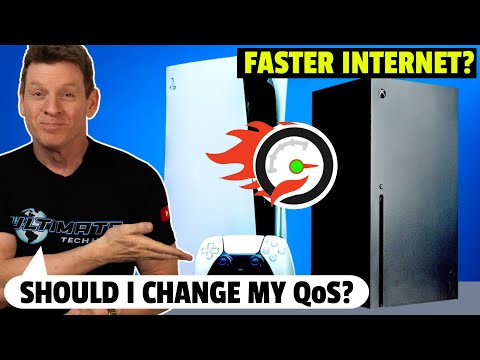
Improving your internet speed starts with accessing your router settings. Here’s how to get started:
QoS allows you to prioritize certain types of internet traffic. This helps ensure smoother gaming, streaming, and video conferencing experiences. Here's how to set it up:
| Activity | Benefit of QoS |
|---|---|
| Online Gaming | Reduces lag and latency for a smoother gaming experience. |
| Media Streaming | Minimizes buffering and enhances video quality on platforms like Netflix and Hulu. |
| Video Calls | Improves call stability and reduces interruptions during Zoom or Skype meetings. |
| Work from Home | Prioritizes bandwidth for business applications, ensuring seamless productivity. |
With these simple adjustments, you can significantly enhance your online activities, whether you're gaming, streaming, or working remotely.
hey hey guys and gals welcome back or Welcome to our Channel today I'm going to show you how to drastically improve your internet gaming experience or your media streaming experience or how about improving your web surfing experience or even improve your work from home experience and all we have to do is access our router settings to make these changes and guys and gals before we get started make sure to like share subscribe and comment it really helps the algorithm thanks so if you haven't accessed your router settings before then look on the back of the router to find the router's IP address the typical router IP address is 1 192.168.1.1 also the router's admin ID and password should be provided along with the IP address next go to the computer that's connected to the router and type in the IP address of the router in the address bar once you log in with the ID and password let's make some changes first you want to change the router login password if you haven't done so already this is the first line of defense against hackers okay now let's look at the router settings and we're going to look for qos quality of service so what exactly is qos and how does it improve our internet experience the key goal of qos is to enable home networks and organizations to prioritize internet traffic which includes offering dedicated bandwidth controlled Jitter and lower latency this ensures that you can direct traffic on your network and change the way the packets are routed to the internet or other networks to avoid any transmission delays which makes it a faster experience and this also ensures that your home or organization achieves the expected quality of service for applications and delivers the expected user experience because more speed is more better common services for which qos is required include Internet Protocol television or ipv online gaming like PS5 and Xbox streaming media like Netflix and Hulu video conferencing like Skype and zoom video on demand and Voiceover IP the types of traffic that qos measures are bandwidth delay loss and Jitter so let's change our qos to improve our gaming experience as well as our media streaming experience and just a heads up all router admin Pages look different that means net gear Asus or TP Link are all going to look different so keep this in mind when adjusting your qos this is the typical Asus admin page so you want to navigate to Adaptive qos and then find the qos tab next go to customize and from here we're going to move gaming to the top which is the highest priority and then right below it we're going to put video and audio streaming and then for our situation we're going to put web surfing and then work from home and then after that we have file sharing and then other and now you want to hit save and now we're going to do a speed test and see what we get as you can see we have very fast speeds and our gaming speed level is noted as super which is very fast and one of the great things about qos is you can change it every day if you'd like depending on your needs some days work from home might be more important other days gaming could be more important and some days maybe web surfing so depending on what you and your family are doing you can change this on a daily basis to get the best internet experience and with that guys make sure to like share subscribe and comment and for guys sakes hit the Bell icon and I'll see you in the next video real soon high five peace

Welcome back to The Ultimate Tech Hub. On today\'s episode, we are testing another Mesh Wifi6 system from a company called ...

This is an Unbiased Review of the C590 Panoramic PC case from Kediers. KEDIERS PC Case 9 ARGB Fans, Mid Tower ...

This is the Viper V560 Gaming Mouse Review. In this video I Unbox and test the V560. At Ultimate Tech Hub we give honest and ...

Welcome back to The Ultimate Tech Hub. On today\'s episode we are going to unbox, setup, and tweak a few of the basic settings ...

Which Wireless Router is our Top Pick for 2023? Watch this video to find out and maybe get a chance to win that router!

Welcome back to The Ultimate Tech Hub. On today\'s episode we are review the 3D Pulse Wireless Headset and the Twin Charger ...